


Vendor Refund, Return & Cancellation Handling Guide
Important: This article is provided for general overview and guidance only and does not replace the official Terms of Service, which govern use of the Platform.
This article explains how Vendors should handle Return Requests (Standard RMA (no refund) or Refund) on 3D RENT hub.
This guidance is for Vendors only. It is intended to help Vendors process returns correctly, avoid refund mistakes, and keep Order Status, Return Status, Stripe, and Avalara aligned.
Key Rules
Do not issue a refund before the equipment is returned and inspected, if applicable, unless 3D RENT hub Admin specifically instructs otherwise.
- Standard RMA (no refund): used for normal end-of-rental returns.
- Refund Request: used for issue-based cases only.
- For refund cases, the usual flow is:
- The Vendor reviews the request
- The Renter ships the equipment back
- The Vendor receives and inspects the equipment
- The Vendor initiates the refund through the Platform (Vendor Dashboard) or the Stripe Dashboard
- Vendors must notify 3D RENT hub Admin after any refund is issued
Vendor Responsibility
Vendors are solely responsible for determining and issuing all refunds to the Renter, including rental amount, tax, shipping, and any deposit, in accordance with the Terms of Service.
3D RENT hub does not issue refunds to Renters. The Platform’s role is limited to adjusting and reimbursing the Vendor for applicable portions of the application fee (which includes the transaction fee and any tax collected on the Order), and ensuring that tax reporting (including Avalara) and Order records are accurate.
Refunds via Platform (Vendor Dashboard) or the Stripe Dashboard
Refunds via Platform (Vendor Dashboard)
- This method is used for full refunds of the rental amount. It can also be used when tax or shipping needs to be refunded, but additional actions in the Stripe Dashboard may be required.
- When a refund is issued through the Platform, only the rental amount is refunded automatically to the Renter. Rental tax, shipping, shipping tax, and any deposit are not included and must be refunded separately via the Stripe Dashboard, if applicable.
- When a Vendor issues a refund via the Platform, a portion of the application fee (which includes the transaction fee and any tax collected on the Order) is reimbursed automatically based on the refund issued through the Platform. Additional reimbursement may be applied by 3D RENT hub Admin after review to reflect the full refund issued.
- After issuing the refund, notify 3D RENT hub Admin so reimbursement can be reviewed and adjusted if needed.
Refunds via Stripe Dashboard
- This method is used for partial refunds, or when additional amounts need to be refunded (such as tax, shipping, or deposit) after a refund has been issued via the Platform.
- When issuing a refund via the Stripe Dashboard, enter the correct refund amount to be issued to the Renter.
- No portion of the application fee is reimbursed automatically when refunds are issued via Stripe. After issuing the refund, notify 3D RENT hub Admin. The Platform will review the refund and reimburse the appropriate portion of the application fee accordingly.
Order Status, Calendar Blocking, and Return Request Availability
The chart below shows when the product availability calendar is blocked and when a Return Request (RMA / Refund) can be submitted.
CHART 1 – Order Status / Calendar / Return Request Availability

Renter vs. Vendor Flow
The flow below shows which steps are performed by the Renter and which steps are performed by the Vendor.
FLOW 1 – Renter vs. Vendor Flow
| Step | Action | Performed by |
|---|---|---|
| 1 | Submit Return / Refund Request from Order | Renter |
| 2 | Review request and decide Approve / Decline | Vendor |
| 3 | Ship equipment back | Renter |
| 4 | Receive and inspect returned equipment | Vendor |
| 5 | Initiate refund (if applicable) | Vendor |
| 6 | Return request marked Completed and Order Status becomes Complete | System / Vendor action |
Standard RMA (End-of-Rental Return)
Most returns on 3D RENT hub are standard end-of-rental returns and do not involve refunds.
Vendors can review return requests from the Vendor dashboard.
PICTURE 1 – Vendor dashboard → Return requests
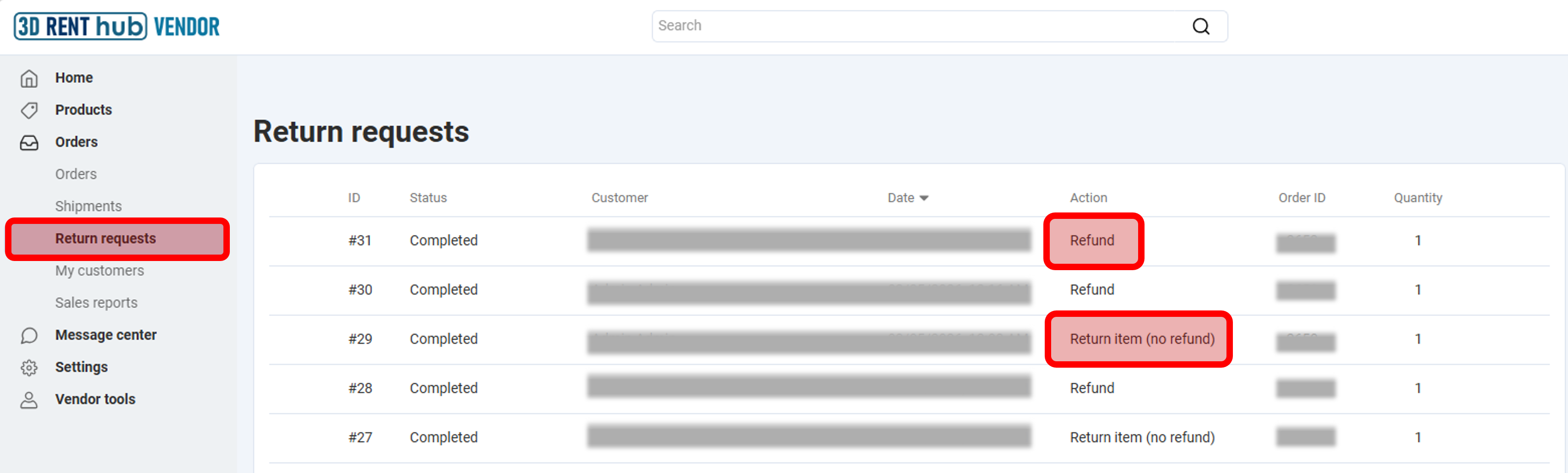
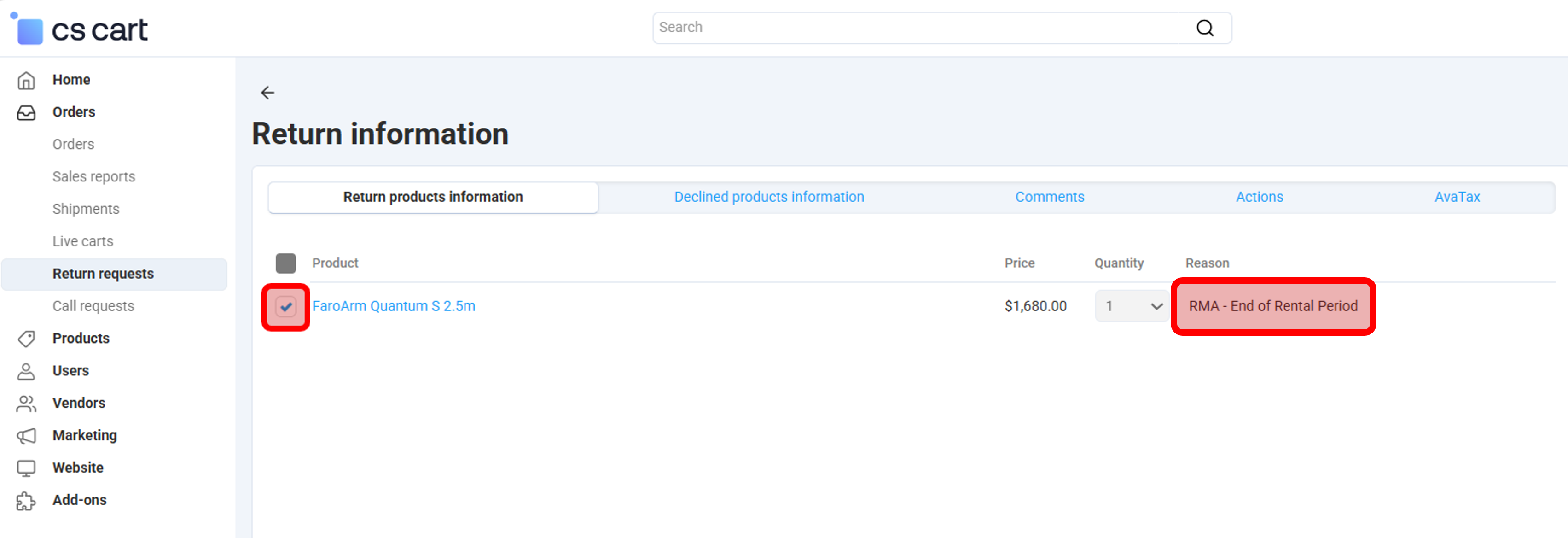
Open the return request and review the request details.
- Confirm the product being returned is selected.
- Review the Reason field.
- Read any comments provided by the Renter.
For normal rental returns, the request will usually show:
- Action: Return item (no refund) [see PICTURE 1]
- Reason: RMA – End of Rental Period [see PICTURE 2]
PICTURE 2 – Example return request (standard RMA)
After reviewing the request, go to the Actions tab and select the appropriate return status.
PICTURE 3 – Return status options
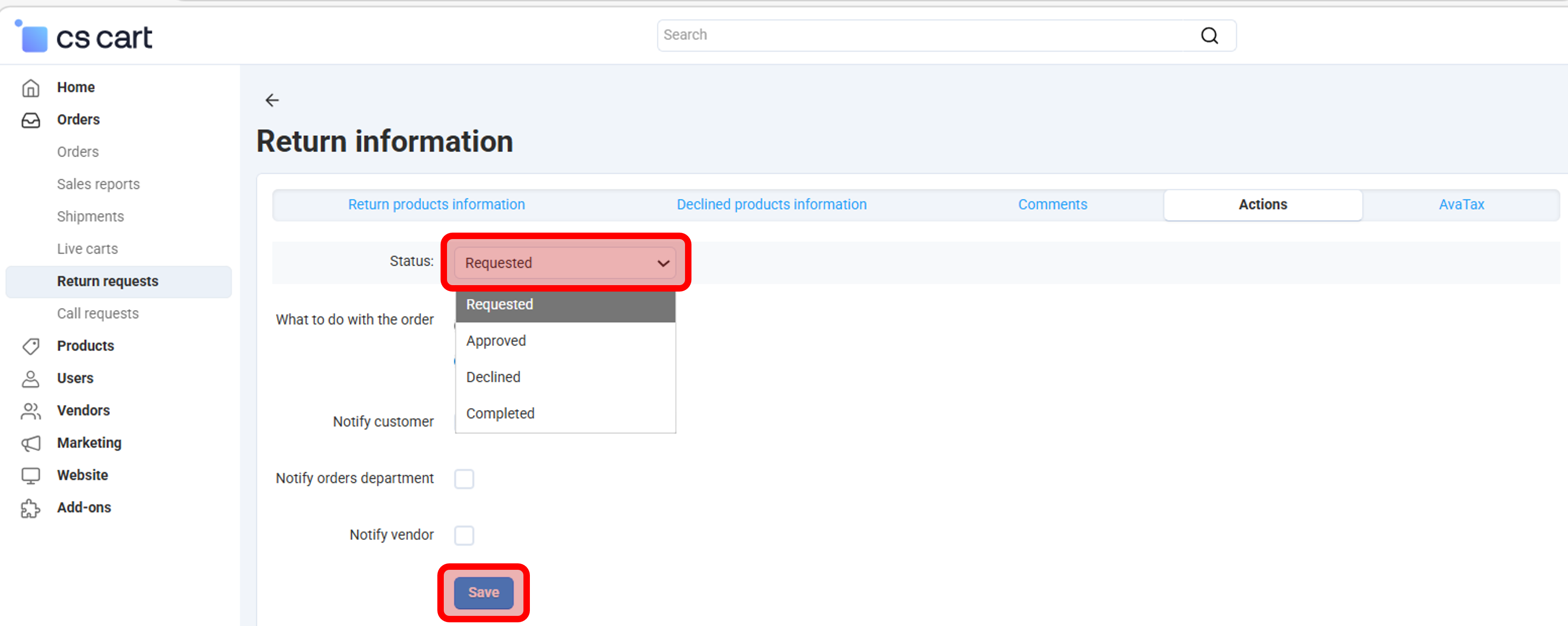
- Requested – default status when the Renter submits the return request.
- Approved – optional step confirming the return can proceed. Standard end-of-rental returns are usually expected, so approval may not always be necessary.
- Declined – used only in unusual situations when return arrangements must first be clarified with the Renter.
- Completed – set after the equipment is received and inspected.
Save to apply the selected status.
When the return status is set to Completed, the related Order Status automatically changes to Complete.
No refund is issued in the standard RMA workflow.
Refund Request Workflow
| Stage | What It Means | What the Vendor Should Do |
|---|---|---|
| Requested | The Renter submits a Refund request. Usually this happens during Rent Order Status, and in some cases during Paid Order Status. |
|
| Approved | The Vendor accepts the return request, but the refund is not issued yet. |
|
| Declined | The Vendor does not approve the refund request. |
|
| Renter Ships Back the Equipment | The Renter ships the equipment back to the Vendor. |
|
| Vendor Receives and Inspects | The equipment is back with the Vendor and can now be inspected. |
|
| Completed | This is the stage where the refund is actually processed and the Order Status turns to "Complete". | Full Refund (via Platform)
Partial Refund (via Stripe)
|
Important Refund Rules
Full Refund (via Platform)
- Only the rental amount (product price) is refunded automatically when using Actions → Give a refund via Stripe Connect in the Vendor dashboard.
- Tax, shipping, shipping tax, and deposit are not included and must be refunded via the Stripe Dashboard by the Vendor, if applicable
- A portion of the application fee is reimbursed automatically
- Additional reimbursement may be applied by 3D RENT hub Admin after review
- Always notify 3D RENT hub Admin after issuing the refund
Partial Refund (via Stripe)
If a partial refund is required, or if tax, shipping, or deposit needs to be refunded after a refund is issued via the Platform, the Stripe Dashboard refund tools should be used instead.
- Partial refunds must be processed by the Vendor through the Stripe Dashboard
- The Vendor must issue the correct total refund amount to the Renter
- No portion of the application fee is reimbursed automatically
- Always notify 3D RENT hub Admin after issuing the refund
Cancellation, Decline, No-Show, Return & Refund Scenarios (Quick Guide)
This table summarizes common scenarios to help Vendors make consistent decisions based on the Terms of Service.
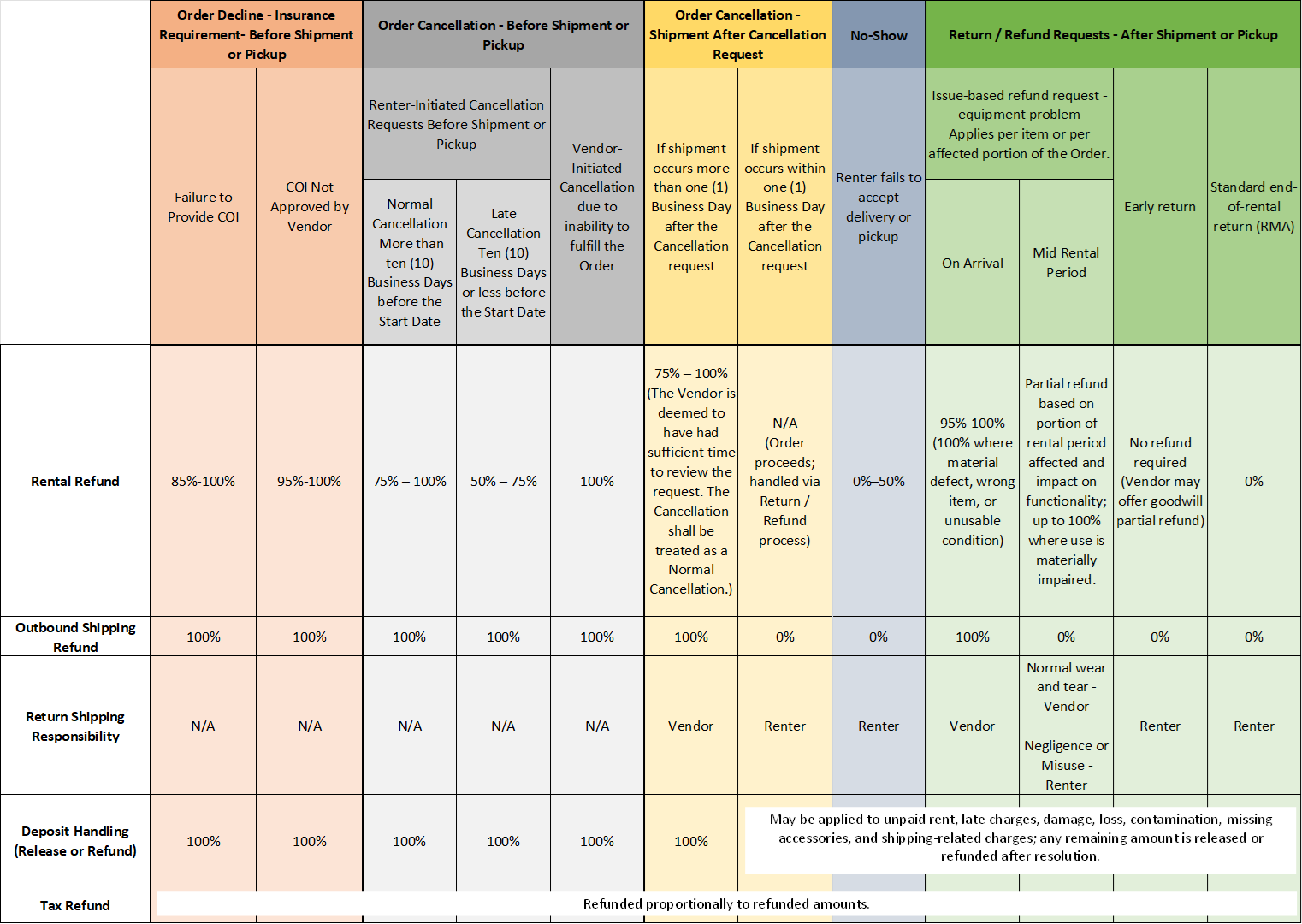
Note: Cancellation timing is based on when the request is submitted in the Order thread (not when reviewed).
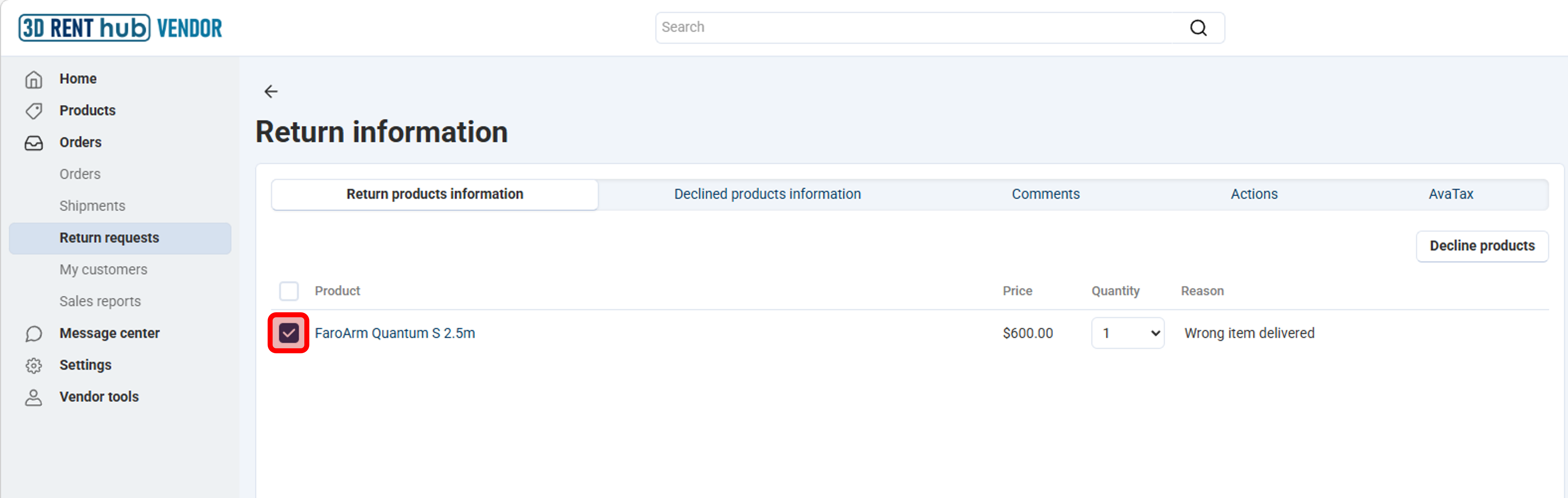
Select the Product Being Returned when processing Return Requests
Before processing the return, make sure the correct product line is selected.
- Check the box next to the product being returned.
- Review the reason shown in the request and comments.
PICTURE 4 – Select returned product
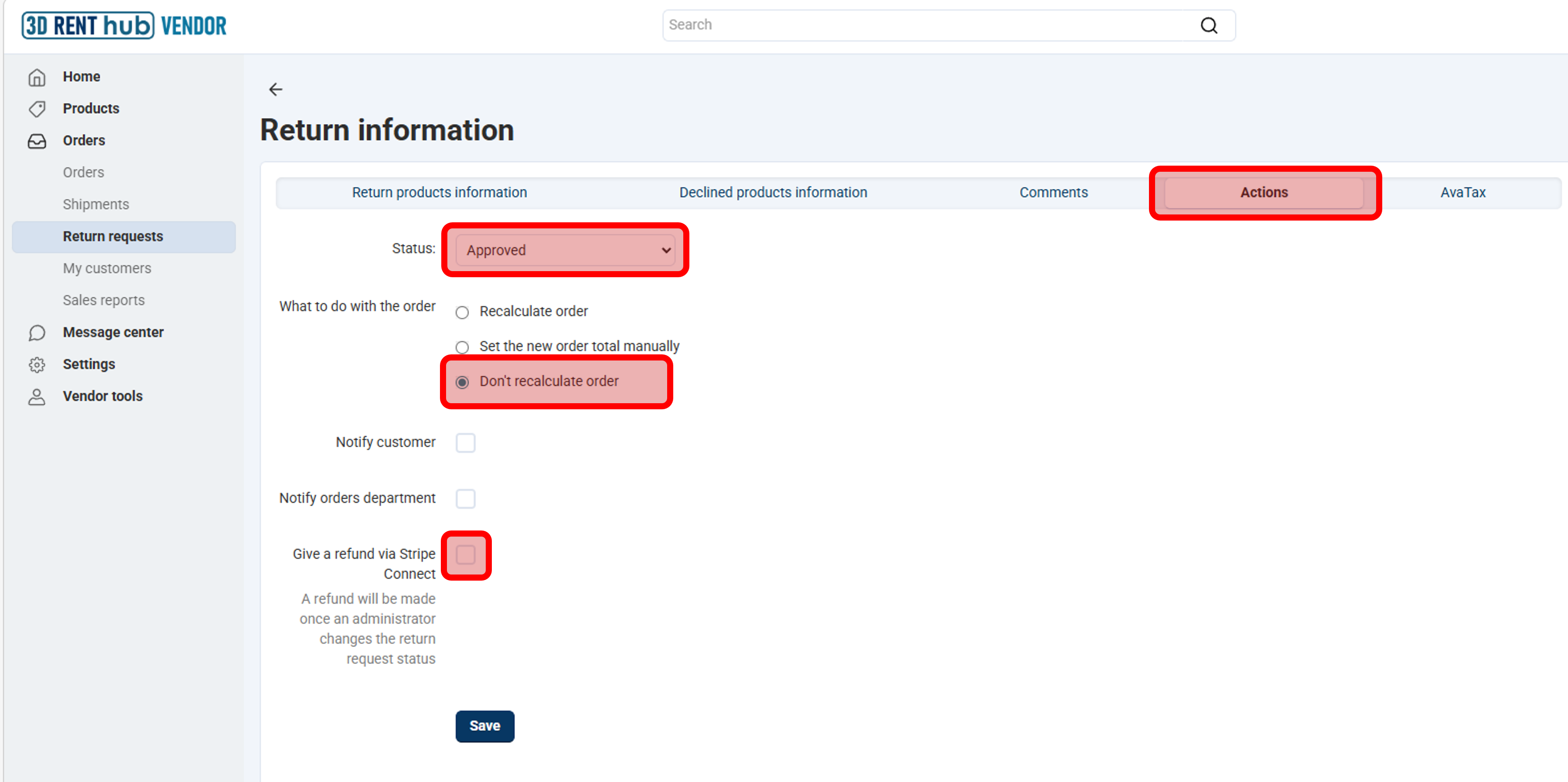
How to Approve a Refund Request (No Refund Yet)
When the Vendor is approving the request but the equipment has not yet been returned, use the settings shown below:
- Status: Approved
- : Don’t recalculate order
- Give a refund via Stripe Connect: leave unchecked
PICTURE 5 – Approve request / Don’t recalculate order / No refund checkbox
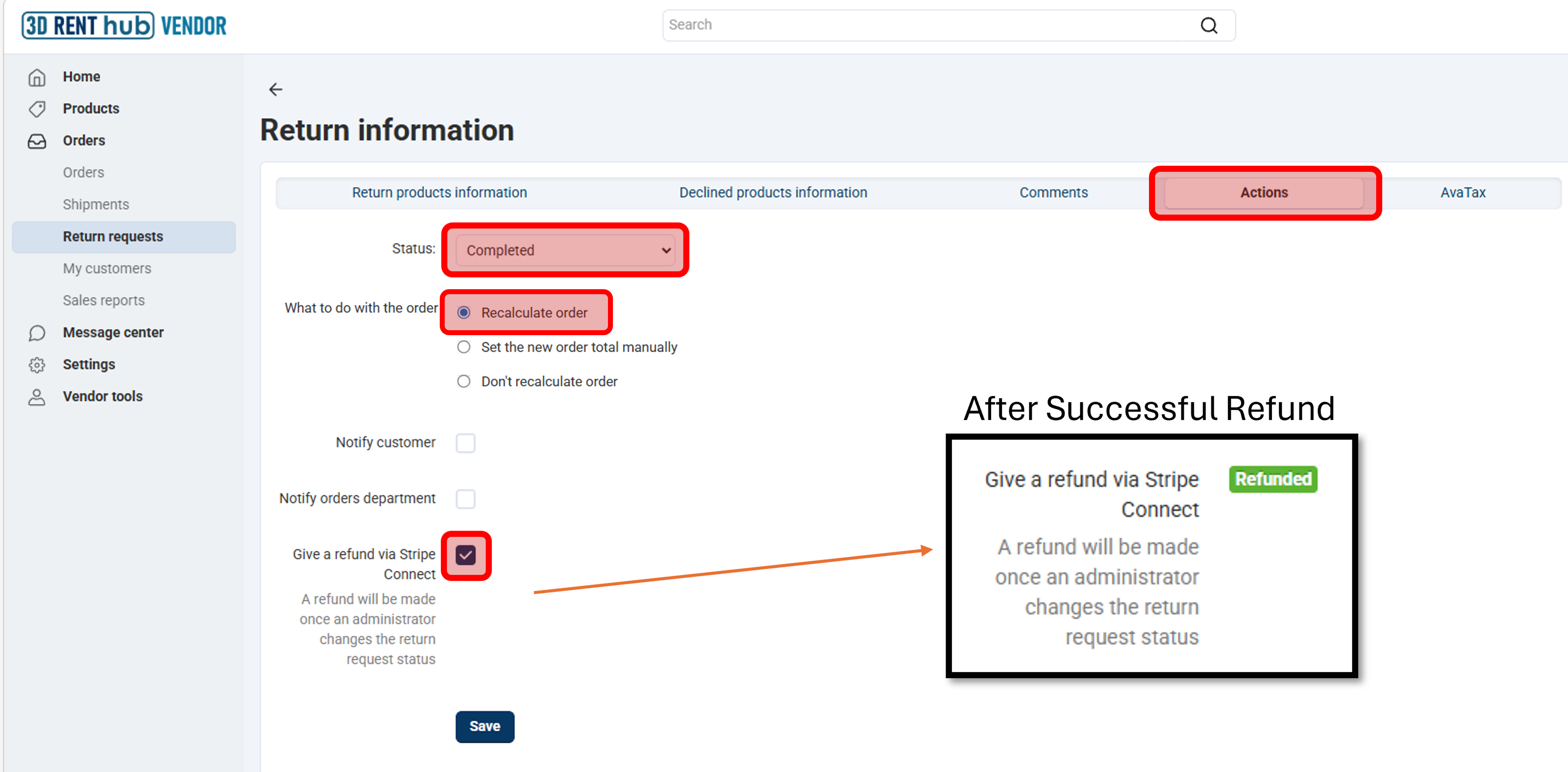
How to Complete the Return and Issue the Refund via the Platform
After the equipment is returned and inspected, use the settings shown below:
- Status: Completed
- : Recalculate order
- Give a refund via Stripe Connect: checked
Save
- Notify 3D RENT hub Admin
PICTURE 6 – Complete request / Recalculate order / Refund checkbox
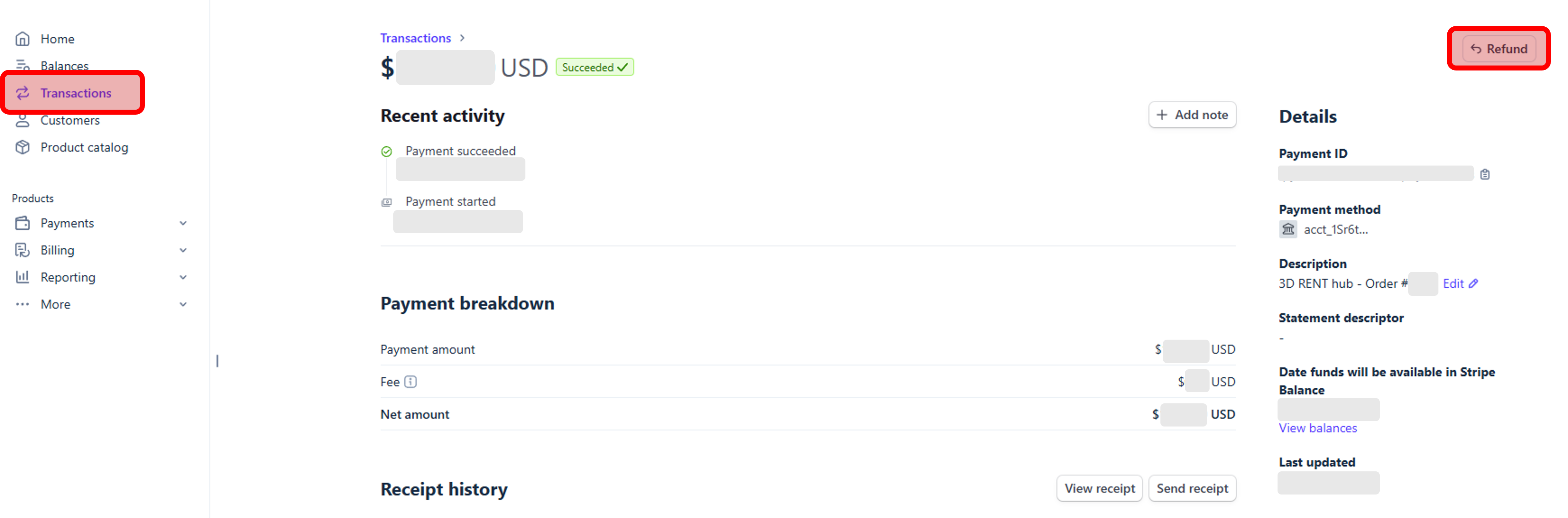
How to Process a Partial Refund in Stripe
If a partial refund is required, or if tax, shipping, or deposit needs to be refunded after a refund is issued via the Platform, the Stripe Dashboard refund tools should be used instead.
- Open the relevant transaction in Stripe Dashboard.
- Use the Refund button there.
- Enter the correct refund amount in Stripe.
- Notify 3D RENT hub Admin
PICTURE 7 – Stripe Dashboard refund button
Vendor Checklist
- Review the request reason and comments.
- Communicate with the Renter if needed.
- Do not refund before the equipment is returned and inspected, if applicable.
- Always notify 3D RENT hub Admin after issuing the refund. Admin will review:
- reimbursement
- tax handling (Avalara)
- order record adjustments
If issuing a full refund via the Platform:
- For Approved status, use Don’t recalculate order.
- For Completed status, use Recalculate order and check Give a refund via Stripe Connect.
- Do not change shipping cost when prompted.
- Refund any tax, shipping, shipping tax, and deposit via the Stripe Dashboard, if applicable
If issuing a partial refund or additional refund via Stripe:
- Issue the refund via the Stripe Dashboard
- In the Platform: Set status to Completed; Use Don’t recalculate order; make sure Give a refund via Stripe Connect is not checked.
Need Help?
If you are unsure whether to approve, decline, partially refund, or fully refund a request, contact the 3D RENT hub team before completing the return.